Expanding Disk Capacity
The OVOC server virtual disk is provisioned by default with a minimum volume. In case a higher capacity is required for the target OVOC server then the disk can be expanded.
| ➢ | To expand the disk size: |
| 1. | Make sure that the target OVOC server VM is not running - Off state. |
| 2. | Select the Hard Drive, and then click Edit. |
Expanding Disk Capacity
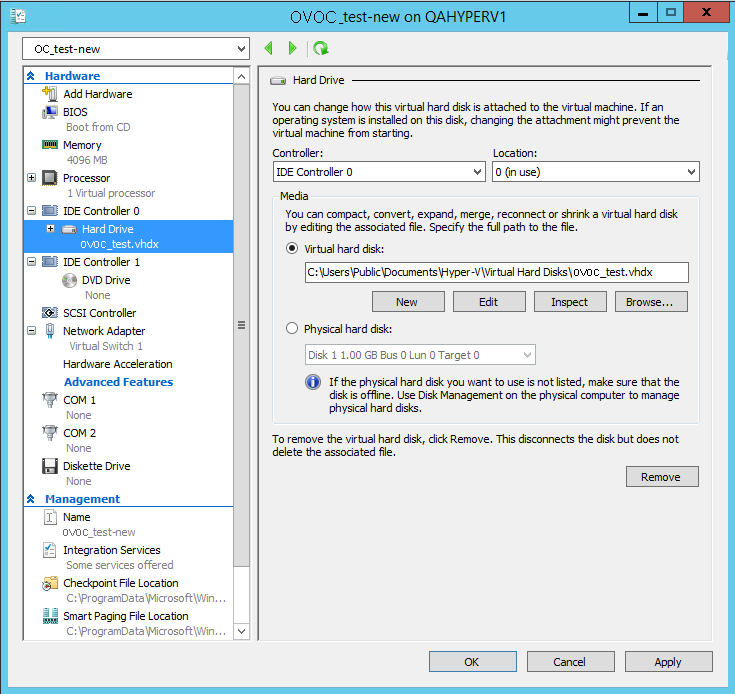
The Edit Virtual Disk Wizard is displayed as shown below.
Edit Virtual Hard Disk Wizard
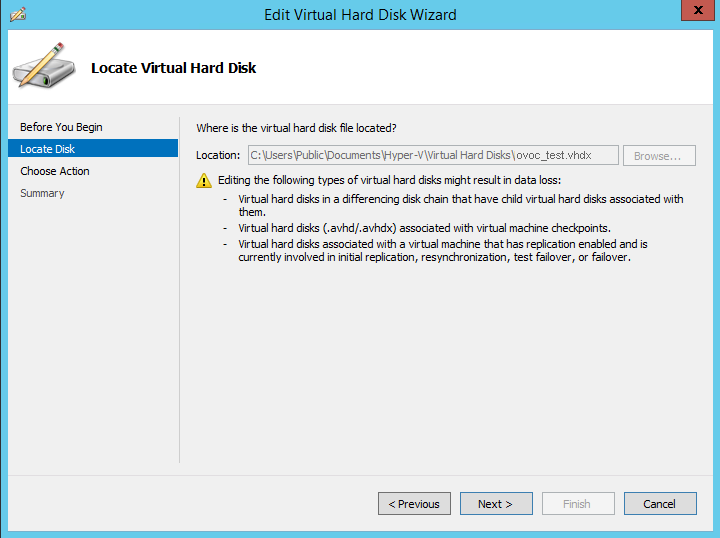
| 3. | Click Next; the Choose Action screen is displayed: |
Edit Virtual Hard Disk Wizard-Choose Action
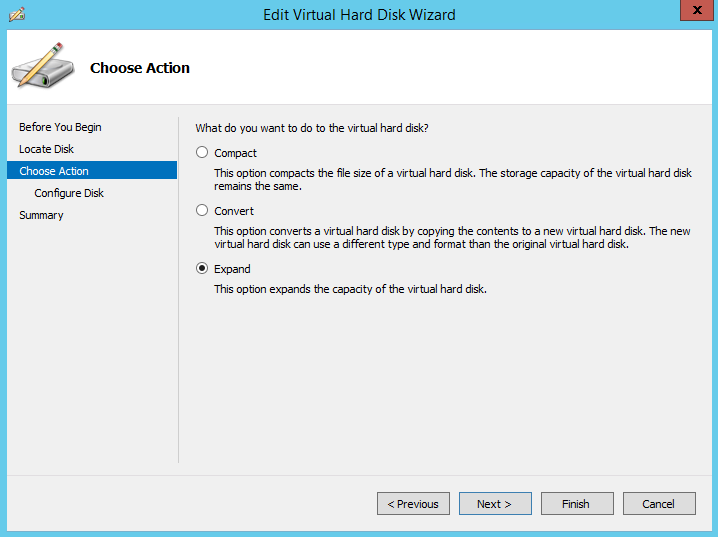
| 4. | Select the Expand option, and then click Next; the Expand Virtual Hard Disk screen opens. |
Edit Virtual Hard Disk Wizard-Expand Virtual Hard Disk
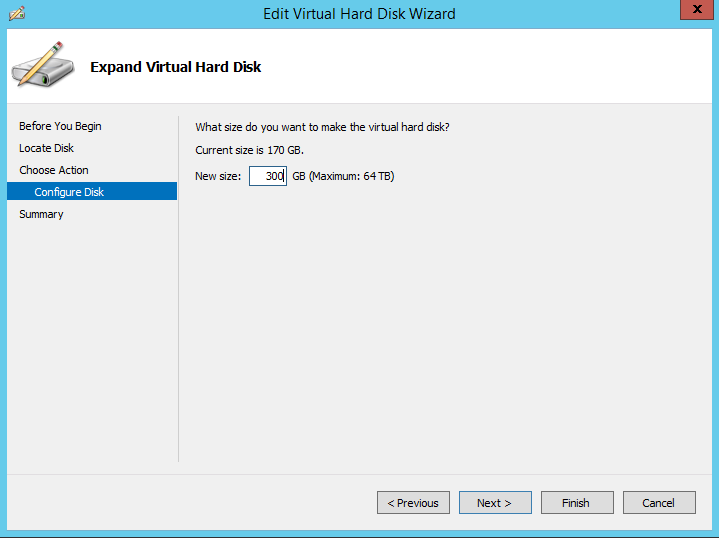
| 5. | Enter the required size for the disk, and then click Next; the Summary screen is displayed. |
Edit Virtual Hard Disk Wizard-Completion
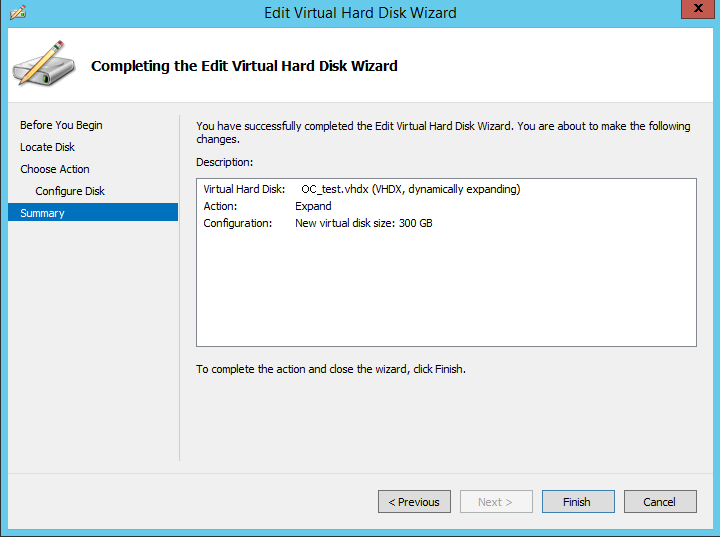
| 6. | Verify that all of the parameters have been configured, and then click Finish. The settings window will be displayed. |
| 7. | Click OK to close. |